
How to Move a WordPress Site to EmDash
EmDash can import your WordPress posts, pages and media. Here are the steps, what comes across, and what you'll need to rebuild.
 By the Astro Nursery team. Review lead: Ankur Gandhi, VP of WordPressPublished 7 minute readSome basics

In this guide
EmDash has a built-in import wizard for WordPress. It brings across your content, and you rebuild the design. This guide walks through the process.
What comes across, and what doesn’t
| Comes across | Needs work |
|---|---|
| Posts and pages | Your theme and design |
| Categories and tags | Plugins and what they add |
| Images and other media | Blocks that plugins draw on the server |
| Authors | Shortcodes, which you should check by eye |
| Custom post types | Extra custom fields, unless you use the exporter plugin |
Posts that were scheduled, pending or private in WordPress arrive as drafts.
Before you start
- Back up your WordPress database and your
wp-content/uploadsfolder. - Set up an EmDash site. See how to install EmDash.
- Write down your current page addresses, menus and redirects. You’ll need them later.
Step 1: Choose how to export
EmDash can read your content in two ways:
- A WordPress export file. In WordPress, go to Tools, then Export, choose All content, and download the file. This is the simplest route.
- The EmDash Exporter plugin. Install it on your WordPress site. It can also bring menus, your site title, your logo, and some custom fields.
Step 2: Open the import wizard
In your EmDash dashboard, choose Import in the sidebar. You can also go straight to /_emdash/admin/import/wordpress. Here’s what it looks like in EmDash 1.4:
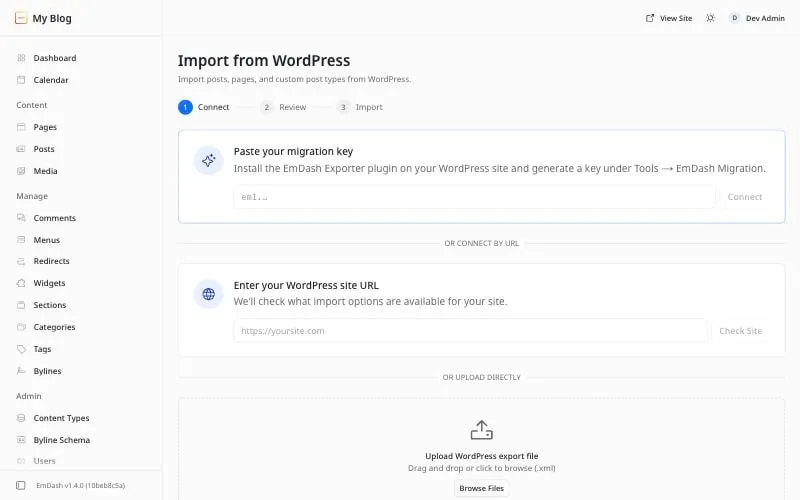
Pick one of the three ways in:
- Paste your migration key, if you installed the EmDash Exporter plugin. The plugin makes the key under Tools, EmDash Migration in WordPress.
- Enter your WordPress site address. EmDash checks which import options your site supports.
- Upload WordPress export file, the
.xmlfile from step 1.
Step 3: Review and map your content
EmDash analyzes your content and shows what it found. For each type of content, confirm where it should go. Posts go to posts, and pages go to pages.
Then match your WordPress authors to EmDash users. Authors you don’t match are kept as guest bylines, so no content is lost.
Step 4: Run the import, then the media step
Start the import. If your site has images, EmDash offers a media step afterwards. It downloads the files, stores them, and updates the addresses inside your content.
Step 5: Check everything
Before you switch your domain over:
- Compare the number of posts and pages on both sites.
- Read a sample of posts, especially ones with galleries, embeds or shortcodes.
- Check that images load from your new site, not the old one.
- Check authors, categories and tags.
- Make sure drafts aren’t visible to visitors.
Step 6: Keep your addresses working
If a page’s address changes, set up a redirect from the old one. This protects your search rankings and stops visitors from hitting dead links.
The simplest plan is to keep the same addresses wherever you can.
A simpler alternative
If your site is a small blog and you’re the only writer, you may not need a CMS at all. See how to move from WordPress to Astro, or read Astro vs EmDash to decide.
Frequently asked questions
Will my WordPress theme come across?
No. EmDash themes are Astro projects, so your design has to be rebuilt or replaced with an EmDash template.
Will my WordPress plugins work in EmDash?
No. WordPress plugins don't run in EmDash. Content from blocks that a plugin draws on the server won't display after the import, so you'll need to rebuild or remove those parts.
Do I have to take my WordPress site offline first?
No, and you shouldn't. Keep WordPress running until you've checked the new site carefully.
Stuck on a step?
Check the common errors guide, look up a word in the glossary, or ask the friendly people in the official Astro and EmDash Discords. How to ask so people can help.